Juggling files across home, office, and client sites often means multiple copies, missing context, and meetings that run long while people hunt for the right document. When Microsoft Office 365 is configured for hybrid teams, small, practical defaults for OneDrive, SharePoint, Teams, and device policies reduce that friction and make everyday work smoother.
Below are eight tips IT teams can consider to reduce interruptions, tighten security, and make collaboration more predictable across locations.
Make files easier to find in Microsoft Office 365 with OneDrive and SharePoint defaults
Files are the single biggest source of slowdowns in hybrid teams. When a file lives in three places, nobody is sure which version is the right one. Simple defaults in OneDrive and SharePoint remove that guesswork: turn on Files On-Demand so people do not need to sync everything, and use SharePoint library templates so team sites follow a predictable structure.
Make sharing rules easy to understand. Set tenant-level defaults for external sharing so vendors and partners can only access what they need, and use site templates to keep folders consistent between teams. These small steps make it faster to find files and reduce the back-and-forth that kills time.
Clean up Teams channels and notification settings so people can focus
Teams is where most hybrid work happens, but too many channels and chimes break concentration. Keep channels purposeful, archive ones that no longer serve a team, and pin a couple of essential resources so people know where to look first.
Help users manage notifications with a few simple habits: set quiet hours, use mentions only when necessary, and update your status when focusing. These small steps reduce interruptions and help people get into deeper, more productive work.
Align device policies so remote endpoints stay secure but usable
Security should not feel like a brick wall that stops people from doing their jobs. Use conditional access to require healthy devices when accessing sensitive systems, and apply lighter checks for lower-risk tasks so daily work is not blocked.
Keep client apps up to date and schedule updates at times that do not interrupt the workday. When devices behave predictably, helpdesk tickets go down and people are less likely to try risky workarounds.
Make meetings actually useful for hybrid attendees
Design invites so both remote and in-person attendees know what to expect. Put a short agenda in the invite, attach the shared folder link, and name a clear owner for follow-ups. That makes meetings shorter and more action oriented.
Recordings and transcripts are useful, but only if they are discoverable. Add a brief summary or time-stamped note so colleagues can jump to the part they need without rewatching the whole meeting.
Use Breakout Rooms in Microsoft Teams for focused small-group work
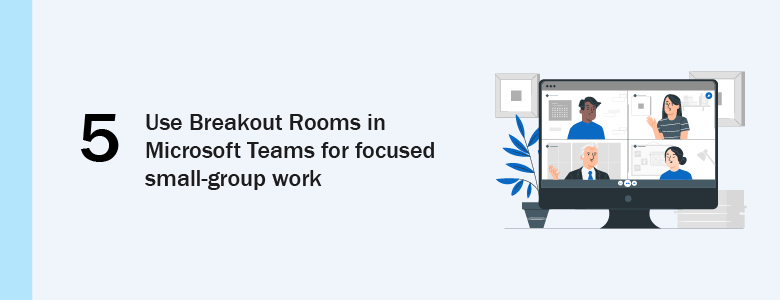
Breakout rooms are often overlooked, but they are valuable for workshops, training, and any meeting where small-group collaboration helps. Splitting a large meeting into smaller groups reduces cross-talk, gives quieter participants room to contribute, and lets facilitators rotate between discussions to keep things on track.
Breakout rooms work best when attendees have a clear task and a shared doc to work on. Hosts can pre-assign people or move them during the meeting, and built-in timers help keep sessions concise. Try the feature in a demo or a low-stakes session to see how your teams use it, then capture quick feedback to improve facilitation.
Keep licenses and feature access simple and fair
Unused licenses add up and confuse people about what tools are available. Match licenses to job roles where possible and reclaim seats when people move on. This saves money and makes it clearer who has access to what.
Give advanced tools to the teams that need them, and keep the default view simple for most users. This approach prevents accidental misuse while still empowering power users to build helpful automations.
Automate small chores so people spend time on real work
A few simple Power Automate flows can remove repetitive tasks like approval routing or calendar reminders. Start with one or two high-volume pain points and build lightweight flows that people can rely on.
Share approved templates centrally so teams reuse the same patterns instead of creating dozens of slightly different automations. That keeps support manageable and reduces surprises.
Roll out changes with people in mind and listen continuously
Big changes land better when people see an obvious benefit. Roll new settings out slowly with a couple of volunteer teams, explain the upside in plain language, and collect quick feedback so you can tidy up rough edges.
Keep a simple feedback channel in Teams and run a brief adoption review every few months with product owners, support, and security. Small adjustments based on real feedback keep the platform working for your teams, not against them.
Need a hand implementing these changes?
Want someone local to help make these settings work for your teams? CT Link can help. They provide practical support for Office 365 setup, email protection, and ongoing monitoring, explained in plain language so your team can decide what fits.
If you would like to talk through options, CT Link can share examples and suggest straightforward next steps. There is no obligation, and they are available to answer questions and help you decide what makes sense for your environment. You may contact us at marketing@ctlink.com.ph to learn more about Microsoft Office 365 plans or set up a consultation with us today!