
Remote Desktop Protocol (RDP) has been around for a long time, and there’s a good reason it’s still everywhere. It lets people get into a Windows desktop or server without being in front of it. That might be an administrator fixing a server after hours or an employee opening a business application from home.
The catch is that anything that makes access easier for your users can also make it easier for someone else. That’s why RDP security deserves more attention than it usually gets. A strong password helps, but it’s only one of several layers that keep remote access safe.
What Is RDP Security and Why Does It Matter?
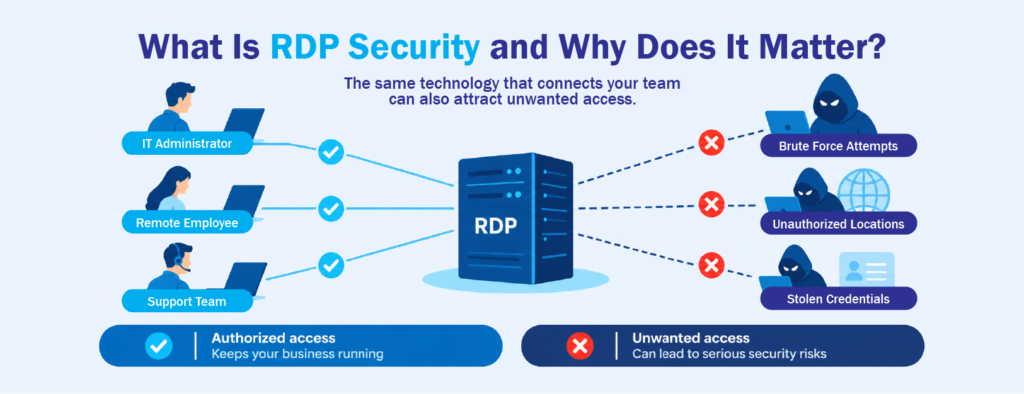
RDP security covers the settings, controls and practices that protect remote connections to Windows systems. It decides who can connect, where they can connect from, how they prove who they are, and what they can reach once they’re in.
This matters because RDP gives a user a working Windows session. Microsoft notes that turning on Remote Desktop makes a computer reachable from other devices on its network, and it recommends using it only on trusted networks. If that access is open to more networks than it should be, or protected by a weak password, it becomes an easy target.
CISA lists RDP among the weaknesses attackers use in ransomware campaigns. Its guidance describes attackers getting in with weak or stolen RDP credentials. The Center for Internet Security makes a similar point: RDP attacks usually come down to basic security gaps rather than a lack of advanced tools.
That’s good news. Most remote desktop security improvements are practical steps rather than major projects.
Start by Reducing Unnecessary Exposure
The first step is to work out where RDP is actually enabled and whether it still needs to be. Over time, Remote Desktop gets switched on for a quick fix or a temporary request and then stays on long after anyone needs it.
Any system that doesn’t need remote access shouldn’t have it enabled. Where RDP is needed, firewall rules and network restrictions can limit where connections come from. Microsoft also suggests using a VPN when users connect from outside the network rather than exposing Remote Desktop directly.
NIST’s guidance on enterprise remote access covers the same idea in more detail. It treats remote access technologies and the devices connecting to them as things that need protecting, including how they are authenticated, which networks they use and how their traffic is secured. The fewer places an attacker can reach a login screen, the less work every other control has to do.
Strengthen Authentication Beyond the Password
Passwords still matter, but RDP security shouldn’t depend on them alone. A strong password is harder to guess, but it does nothing once it’s been leaked, reused or phished.
Microsoft recommends Network Level Authentication (NLA) for Remote Desktop connections. With NLA, users have to authenticate before a full remote session starts, which helps protect the server from unwanted connections.
Multi-factor authentication adds another layer, and CISA specifically recommends it to reduce the risk of compromised RDP credentials. With MFA, a stolen username and password no longer gets someone in on its own. Good secure remote access starts there.
It also helps to keep remote access limited to accounts that need it. When people change roles or leave, removing access they no longer need is one of the simplest ways to reduce risk.
How to Handle RDP Brute Force Attempts
When a remote login can be reached from the internet, it tends to attract automated attacks. These tools try usernames and passwords over and over until something works. This is what an RDP brute force attack looks like, and it can run around the clock without anyone noticing.
The answer is to stop treating repeated failed logins as normal. Brute-force protection watches for failed attempts and blocks the source once it passes a set limit. That doesn’t replace strong passwords or MFA. It deals with the pattern of behavior around the login rather than the credentials themselves.
Some balance is needed here. Real users mistype passwords, and a limit that’s too strict will generate support tickets instead of preventing attacks. A sensible limit, combined with the other layers, usually works better than one very aggressive setting.
Control Where and When Connections Are Allowed
Valid credentials don’t always mean a connection makes sense. If your team only works from certain countries, there’s little reason for a server to accept logins from somewhere else. The same goes for unknown devices or connections at times when nobody should be working.
These restrictions narrow the conditions under which anyone can log in. Even if credentials are stolen, the attacker may still be stopped by a location, IP, device or time restriction. Common options include:
- Allowing connections only from the countries where your users actually work
- Restricting access to approved IP addresses or networks
- Limiting connections to recognized devices
- Setting access hours that match normal working schedules
Keep these rules in line with how your people actually work. Travel, after-hours maintenance and remote support are all legitimate. The aim is to block access you don’t need, not to make legitimate work harder.
Limit What Users Can Reach After They Log In
It’s easy to treat the login screen as the end of the job, but RDP security continues after sign-in. Once someone is connected, their permissions decide what they can see and change.
A user who only needs one business application doesn’t need a full desktop with access to shared folders and admin tools. Giving each person access to what their role requires keeps the damage contained if an account is ever compromised.
Ransomware protection fits here as well. It doesn’t replace authentication, patching or backups, but it adds a safeguard if malicious activity starts inside a session. Each layer covers a different gap, and together they make RDP much harder to misuse.
Making Remote Access Both Safer and More Practical
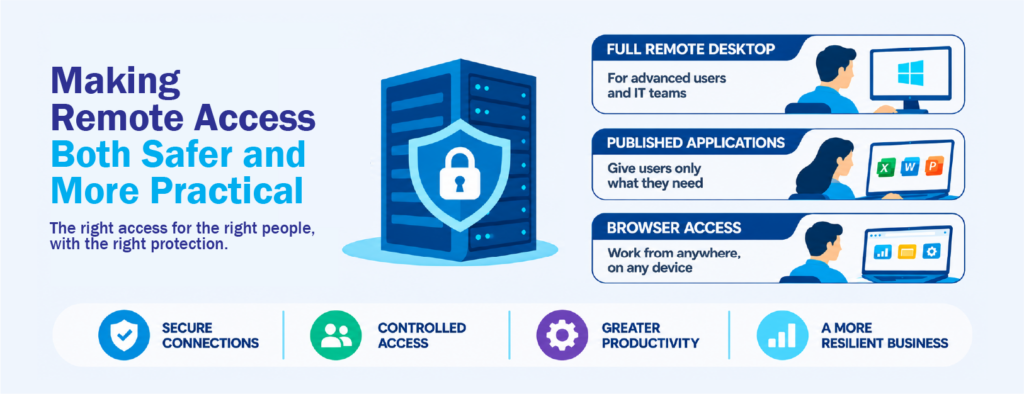
Securing RDP is one part of the picture. The other part is deciding how users should get to their work in the first place. Some people need a complete Windows desktop. Others only need one or two applications, and giving them a full desktop adds access they’ll never use.
This is where TSPlus Remote Access fits in. It lets organizations deliver full remote desktops or publish individual Windows applications from centralized servers. Applications can be assigned to specific users or groups, and users can connect through RDP-compatible clients or a web browser using HTML5. There’s also a web application portal, so users can open their published applications from a single browser page.
Delivering only the applications people need fits naturally with the layered approach above: users get what their role requires and nothing more. TSPlus Remote Access also supports SSL-encrypted connections. For extra protection, it can be paired with TSPlus Advanced Security, which adds brute-force protection, country-based restrictions, working-hours rules and ransomware protection.
Frequently Asked Questions About RDP Security
Is RDP safe to use?
RDP can be used safely when it’s set up properly. The risk comes from exposing it too widely, protecting it with weak passwords alone or leaving it enabled where it isn’t needed. NLA, MFA, restricted access and sensible permissions together make it much harder to misuse.
What is the biggest RDP security risk?
Weak or stolen credentials are one of the most common problems. CISA notes that attackers often get in through compromised RDP credentials rather than complex exploits, which is why MFA and brute-force protection matter so much.
Does changing the RDP port make it secure?
Changing the default port may cut down some automated scanning, but it isn’t real protection on its own. Attackers can still find the service. Limiting exposure and strengthening authentication do much more.